Email workflow

Speak Chinese. Draft your email in English.

Use voice translation for a message you already know how to say in Chinese. Include the greeting, request and deadline in your speech: translation changes the language, rather than inventing missing information.

KeycoBoard Mac panel showing the translation language selector; choose English for this workflow

How it works

  1. 01

    Open the email body

    Place the cursor in a supported email field. Start voice input from the Mac shortcut or the microphone on the iOS KeycoBoard keyboard.

  2. 02

    Choose English and speak the complete message

    Pick English as the target language in the voice controls. Say the Chinese greeting, facts, request and sign-off. You can change the language during recording; the selection at stop is applied.

  3. 03

    Check the English draft

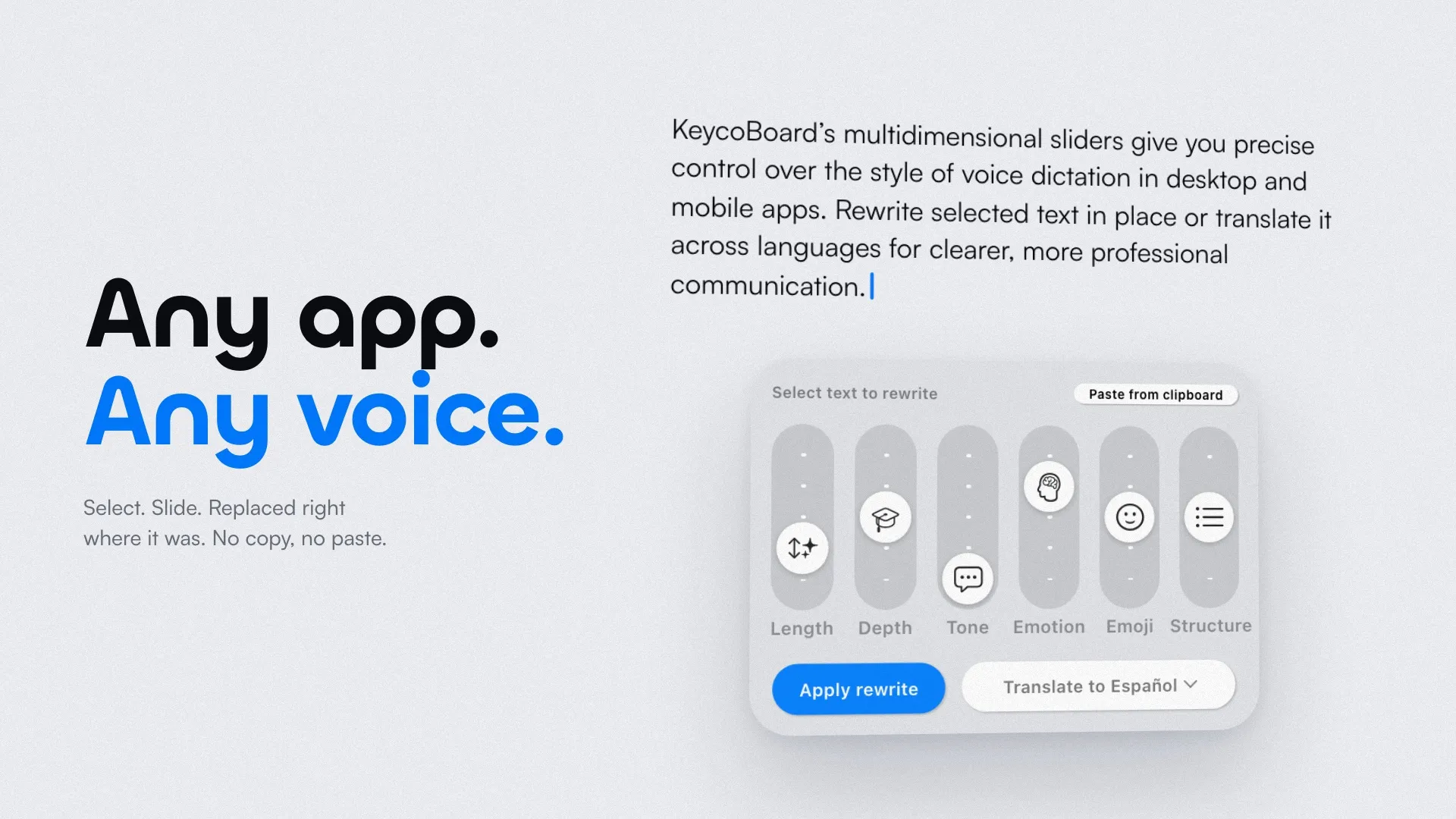
    Stop recording and review the returned text. Confirm recipient names, dates, amounts and intent. For a more formal or shorter email, set the sliders before you stop; they apply together with the translation.

Input and output examples

Editorial examples illustrate the workflow, not recorded benchmark results. Actual wording varies by model, settings and context. Review facts before using the output.

Ask for a revised quotation

Input
Alex 你好,谢谢你发来的报价。请在周五之前发一份包含运费的更新报价。谢谢,Lin。
Settings
Voice input. Target: English. Sliders at their defaults.
Example output
Hi Alex, thank you for the quotation. Could you send an updated quote including shipping costs by Friday? Thanks, Lin.

Keep the meaning under your control

Include the facts you need

Say the deadline and what the quotation must include. The app cannot know an agreement you have not supplied.

Set tone and language together

The sliders and Custom Rewrite Prompts apply to the English result, so a formal tone or a shorter email comes back in the same request.

Requirements and limits

Platforms, permissions, processing and pricing.

Questions

Does it send the email for me?

No. It inserts a draft into a supported text field. You review and send it.

Can I choose both translation and rewrite sliders at once?

Yes. Pick English and set the sliders; one request returns English text in that tone and length.

Compare your options

Features, limits and prices, with sources.

Setup and FAQ · Privacy and processing

Try it in your own text field.

Free to start on Mac, iPhone and iPad with 30 shared uses a month. Pro is US$29.99/year or US$3.99/month. See pricing